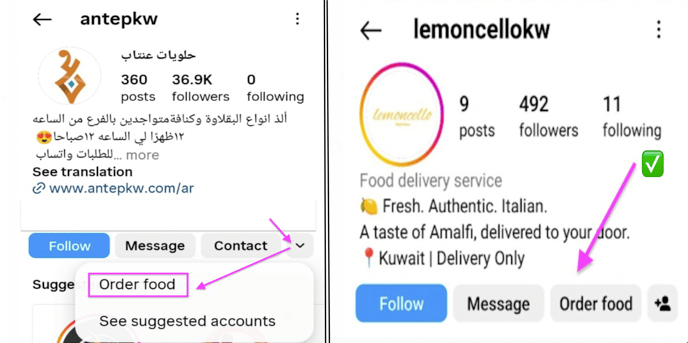
Connect your Zyda store to your Facebook and Instagram pages so an Order Food button appears on them. Owners and managers can do this.
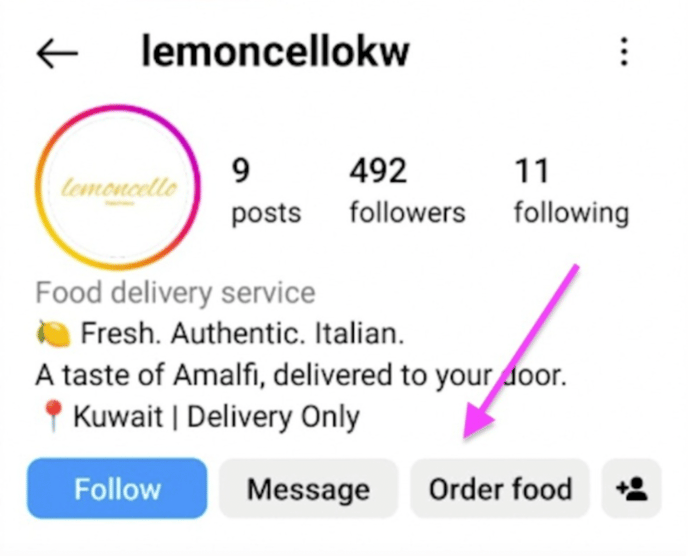
Customers click Order Food and order from your own website, not from a third-party app.
Before you start
- You must own the Facebook page and the Instagram page.
- You must have a Facebook Business Manager account with the Facebook page and the Instagram page connected to it. Follow this guide on Facebook if you face any issues
- You must be an owner or a manager on the Zyda dashboard.
- Your store currency must be on the list of supported currencies on Facebook.
The button opens your custom domain if you have one linked to Zyda. If you do not, it opens the orderfast domain Zyda gave your store. Check the Visit Store URL on your dashboard to see which one will be used.
There are three ways to connect the button: from Instagram, from the Zyda dashboard, or from your Meta Business account. For the third one, see Connect the Order Food button through Meta.
Steps
From the Zyda dashboard
-
Open your Zyda dashboard at dash.zyda.com.
-
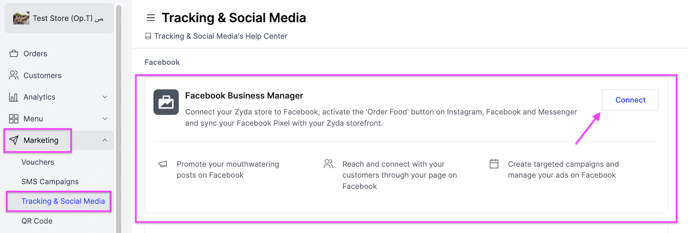
Go to Marketing and click Connect next to Facebook Business Manager.
-
Your Facebook page loads automatically. Click Continue.
-
Choose your business manager account from the list, then click Continue. There is usually only one account. If you do not have one, click Create New.
-
Choose your Facebook business page from the list, then click Continue. If you do not have one, click Create New.
-
Choose your Instagram business profile from the list, then click Continue. If you do not have one, click Create New.
-
Choose your ad account from the list, then click Continue. If you do not have one, click Create New.
-
Choose your Meta Pixel from the list, then click Continue. If you do not have one, click Create New.
-
Review your choices, turn on Automatic advanced matching, then click Continue.
-
Approve that Zyda manages the business extension, then click Next.
-
A confirmation message appears. Click Done.
From Instagram
- Click Edit profile.
- Add Action buttons.
- Select Order food.
- A list of supported partners appears. Select Zyda. This takes you to the Zyda dashboard login.
- Log in with your Zyda dashboard email and password.
- Click Continue as, followed by your store name.
After you connect
The Order Food button appears on your Instagram and Facebook pages. Customers use it to visit your website and order from you.