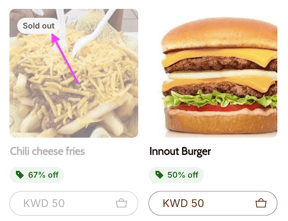
Mark an item as sold out, so customers know it cannot be ordered from your website now. Owners and managers can do this from the item settings. Operators can do it from Item Tracking.
If your store is integrated with Foodics, make any menu change in the Foodics dashboard instead. Item names, prices, option groups and modifiers edited in Zyda will not apply to your store.
Steps
Method 1: from the item settings
-
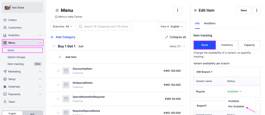
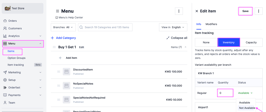
Go to Menu and select Items.
-
Select the item you want to update.
-
In the Info section, scroll to Item Tracking. Availability is set per branch.
-
If Item Tracking is None, change Status to Not Available.
-
If Item Tracking is Inventory or Capacity, set Quantity to 0, or change Status to Not Available.
Method 2: from Item Tracking
This method is quicker, and it handles several items.
-
Go to Menu and select Item Tracking.
-
Search for the item.
-
Mark it as Not Available, or set Quantity to 0 for inventory and capacity items.
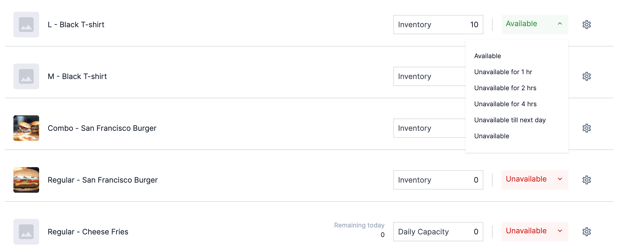
Make an item unavailable for a set time
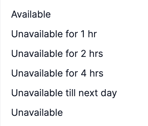
You can set an item as unavailable for a period: 1 hour, 2 hours, 4 hours, or until the next day. When the time ends, the item becomes available again on the website.
Inventory and capacity
- Inventory — the quantity does not reset. When it reaches 0, the item stays unavailable.
- Capacity — the quantity resets every day.