Use Google Tag Manager to put a WhatsApp button on every page of your website.
Before you start
- Google Tag Manager must be set up on your store. Read Set up Google Tag Manager and Google Analytics 4.
- The person who adds the code must be able to make changes in Google Tag Manager, ideally an admin.
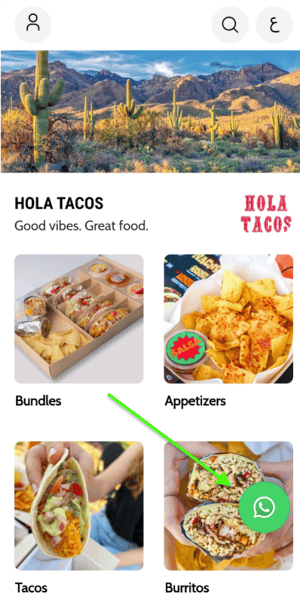
Steps
-
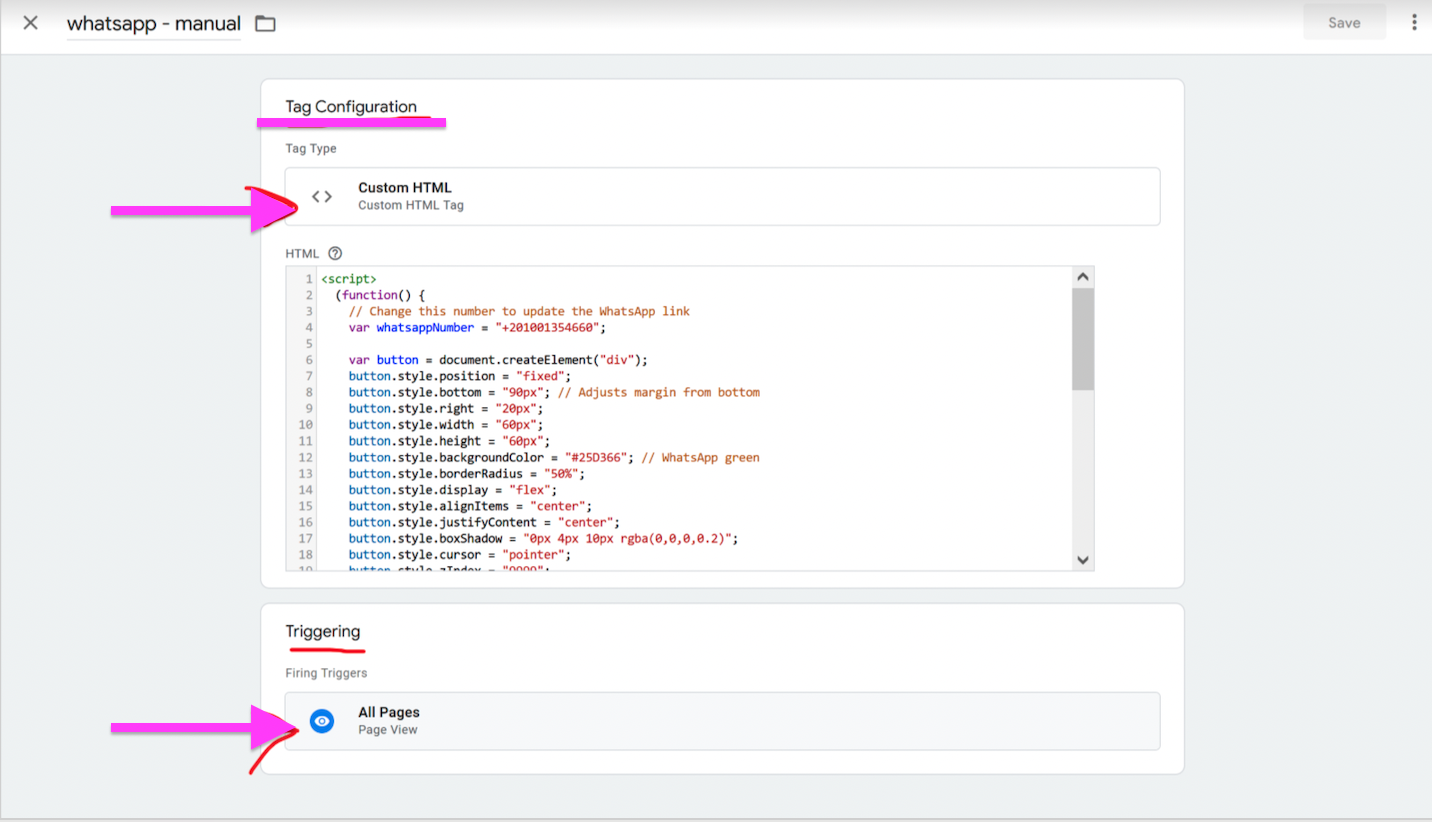
Open Google Tag Manager and click New Tag.
-
Under Tag Configuration, choose HTML, add the code below, and replace the phone number.
-
Under Triggering, choose All Pages.
-
Click Save.
-
Click Publish.
-
Click Skip.
The code
<script>
  (function() {
    // Change this number to update the WhatsApp link
    var whatsappNumber = "+201001354660";

    var button = document.createElement("div");
    button.style.position = "fixed";
    button.style.bottom = "90px"; // Adjusts margin from bottom
    button.style.right = "20px";
    button.style.width = "60px";
    button.style.height = "60px";
    button.style.backgroundColor = "#25D366"; // WhatsApp green
    button.style.borderRadius = "50%";
    button.style.display = "flex";
    button.style.alignItems = "center";
    button.style.justifyContent = "center";
    button.style.boxShadow = "0px 4px 10px rgba(0,0,0,0.2)";
    button.style.cursor = "pointer";
    button.style.zIndex = "9999";

    var img = document.createElement("img");
    img.src = "https://upload.wikimedia.org/wikipedia/commons/6/6b/WhatsApp.svg"; // Official WhatsApp logo
    img.style.width = "30px";
    img.style.height = "30px";

    button.appendChild(img);

    button.onclick = function() {
      window.open(
        "https://api.whatsapp.com/send/?phone=" + encodeURIComponent(whatsappNumber) + "&text&type=phone_number&app_absent=0",
        "_blank"
      );
    };

    document.body.appendChild(button);
  })();
</script>