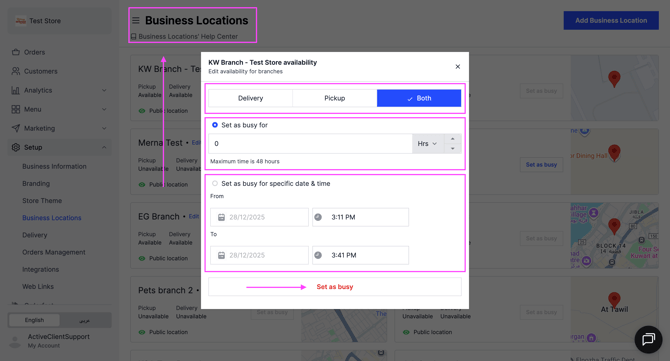
Mark your store as busy without closing it. Customers see a notice that ordering is not available for now, and they can come back later to place their orders.
You can do this in two ways: from the Orders tab, or from the Business Locations tab.
Busy mode is recommended instead of unpublishing the store. Your business stays visible, and customers know to come back later.
Steps from the Orders tab
Owners, managers and operators can do this.
-
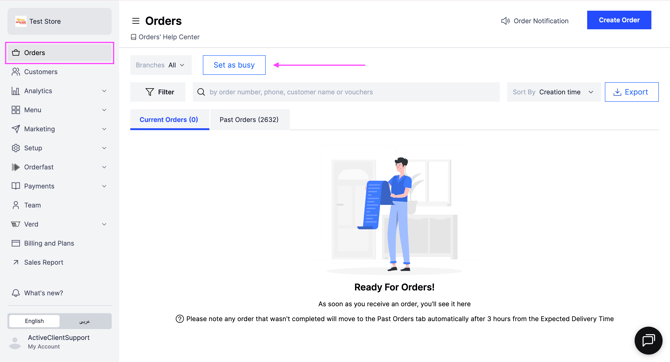
Go to Orders.
-
Click Set as Busy.
-
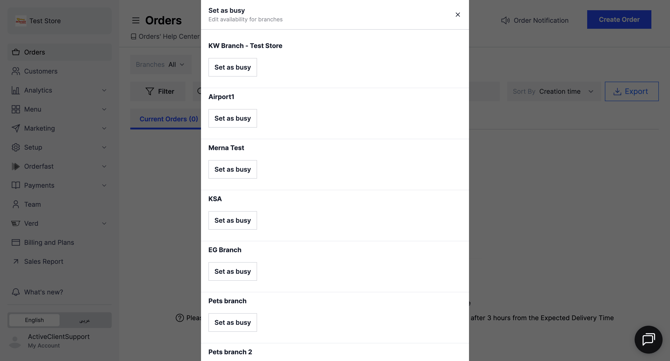
If you have more than one branch, select the branch you want to set as busy.
-
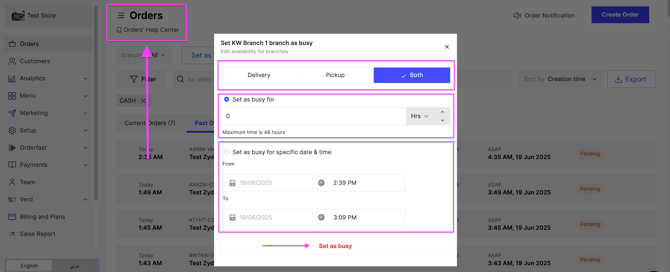
Choose the Busy Mode: delivery, pickup, or both.
-
Choose the Duration: a number of minutes or hours, which starts immediately, or a specific date and time with a start and an end time.
-
Click Set as Busy.
Steps from the Business Locations tab
Owners and managers can do this.
-
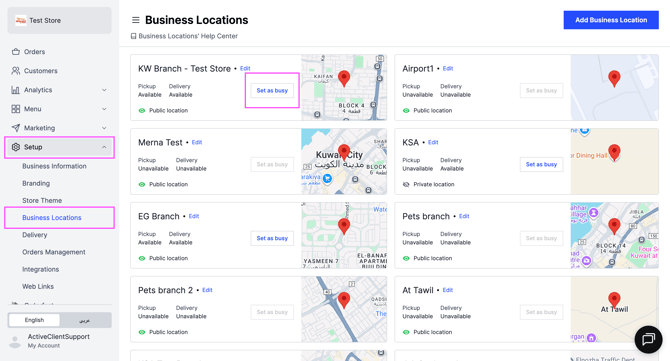
Go to Setup.
-
Click Business Locations.
-
If you have more than one branch, click Set as Busy next to the branch you want.
-
Choose the Busy Mode: delivery, pickup, or both.
-
Choose the Duration: a number of minutes or hours, which starts immediately, or a specific date and time with a start and an end time.
-
Click Set as Busy.