Connect a Snapchat Pixel to your store. The pixel is a script that measures the cross-device impact of your Snapchat ad campaigns, so you can track how many Snapchat users take action on your website after seeing your Snap ad. Owners and managers can do this.
Before you start
- You need a Snapchat Ads Manager account. You can create one at https://ads.snapchat.com.
- You need a Snapchat Pixel. You can create it through the Events tab in your Snapchat Ads Manager account.
- Your store must be on the Growth plan with Zyda.
Steps
-
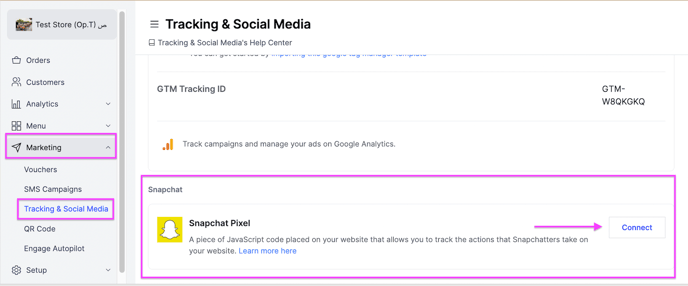
Go to Marketing.
-
Go to Tracking & Social Media.
-
Scroll down and click Connect next to Snapchat Pixel.
-
Enter or paste the Pixel ID.
-
Click Connect.
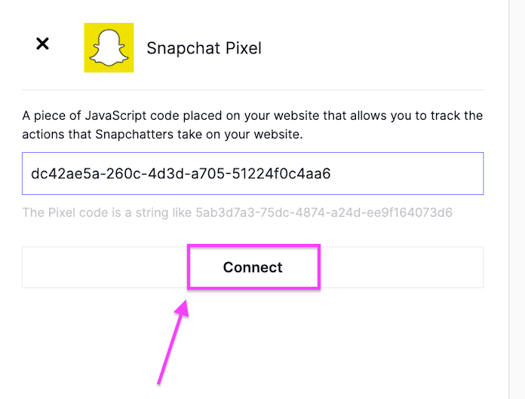
Wait 24 to 48 hours for the first data to show in the Events Manager section of Snapchat Ads Manager.
Create a new Snapchat Pixel
-
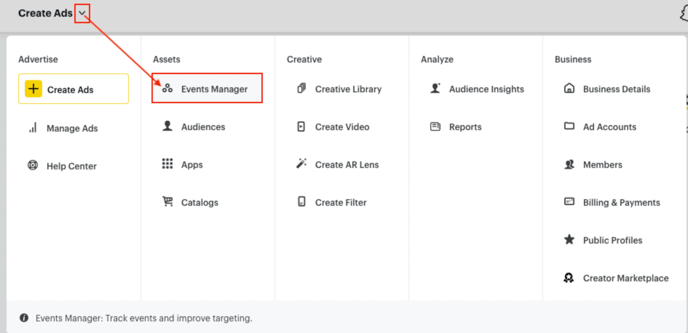
Log in to your Ads Manager account.
-
At the top left corner, click Create Ads and select Events Manager from the dropdown.
-
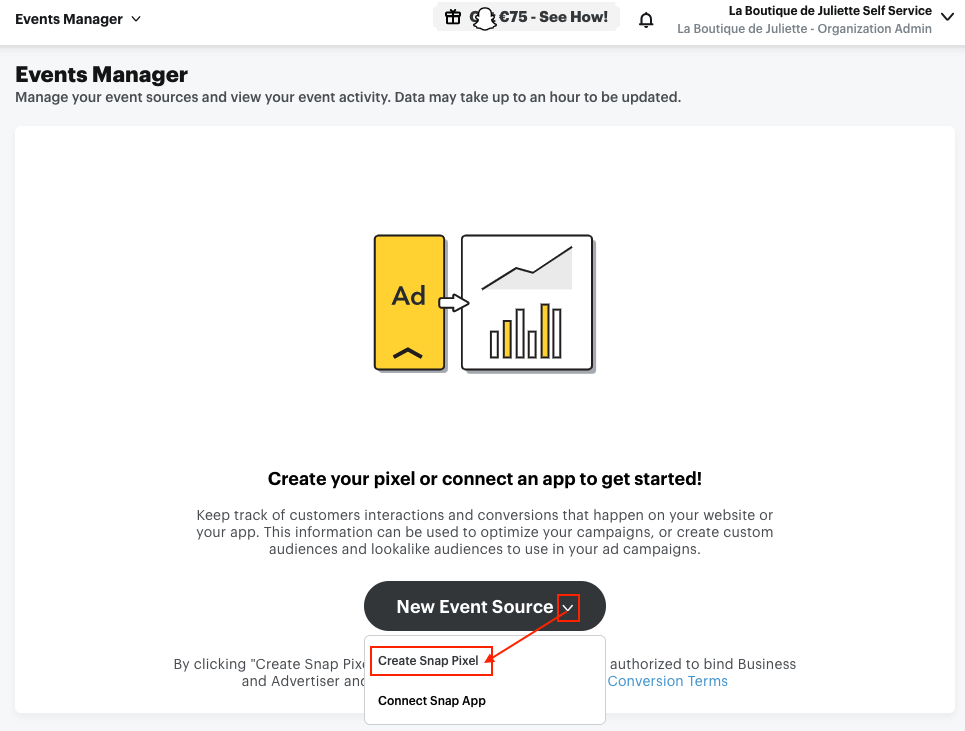
Click New Event Source, select Create Snap Pixel, then click Confirm.
-
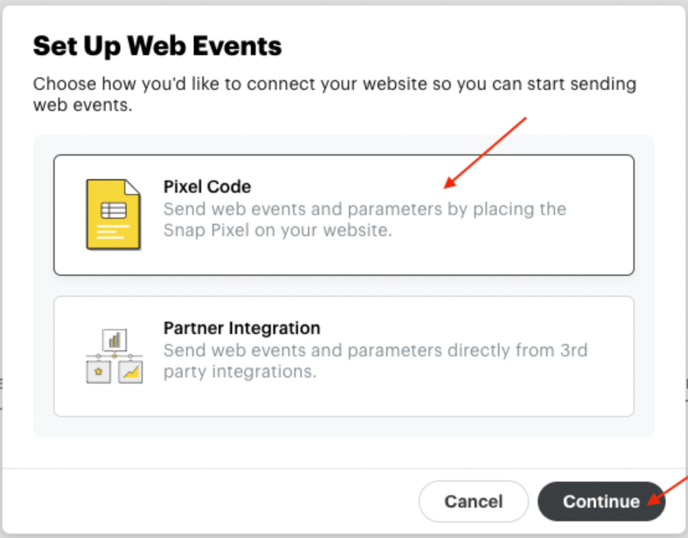
Click Pixel Code, then Continue, then Create new Pixel.
-
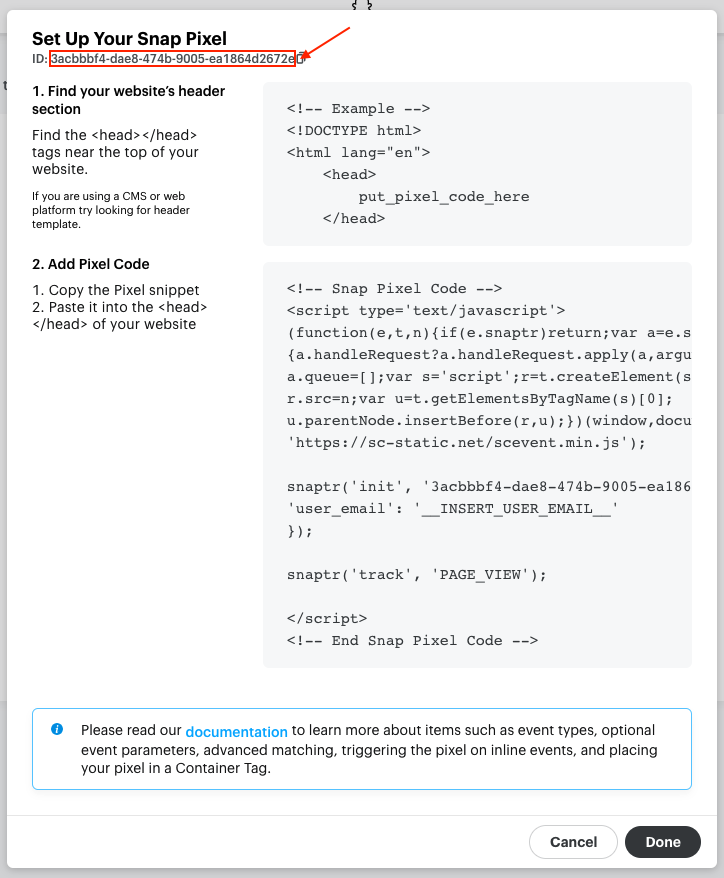
Copy the code.
-
Paste it on your Zyda dashboard to connect.