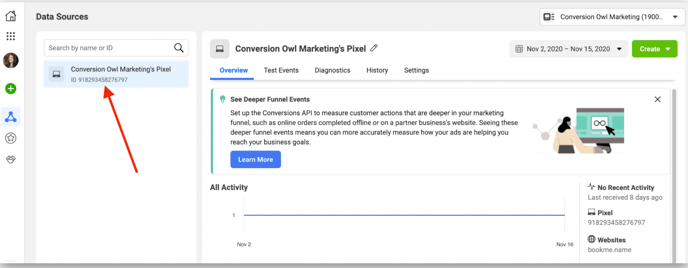
Connect your Facebook Pixel to your store. Owners and managers can do this.
The Facebook Pixel watches what visitors do on your website and uses that data to make your ads more relevant. Once it is connected you can:
- Track who visits your site and what they do.
- Retarget people who left without buying.
- Show personalised ads to people who have already shown interest.
- Measure real sales and results from your Facebook ads.
For more accuracy, combine the pixel with the Conversion API. Read Connect the Facebook Conversion API.
Before you start
- You must own the Facebook page.
- Your dashboard access level must be manager or owner.
- Your domain must be verified.
- To learn more about the Facebook Pixel, read Facebook's guide.
Steps
-
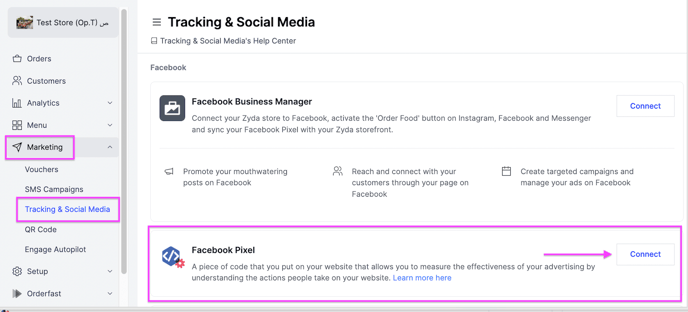
Go to Marketing.
-
Select Tracking & Social Media.
-
Click Connect next to Facebook Pixel.
-
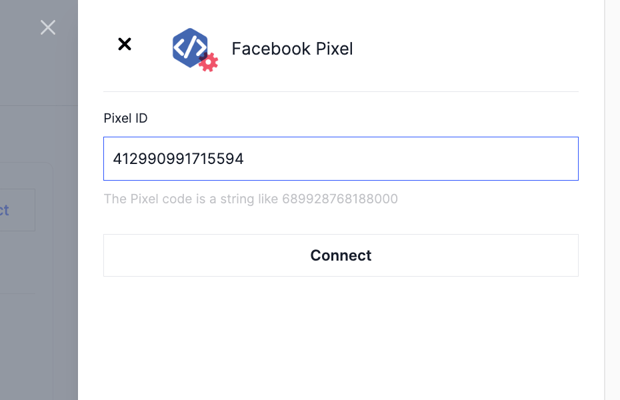
Enter or paste the Pixel ID, then click Connect.
Get your pixel ID
-
Log in to business.facebook.com.
-
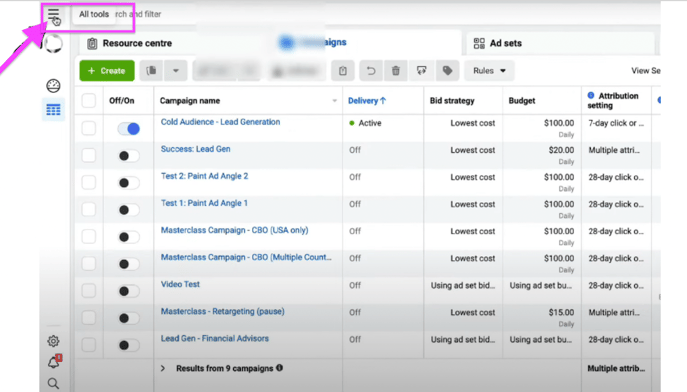
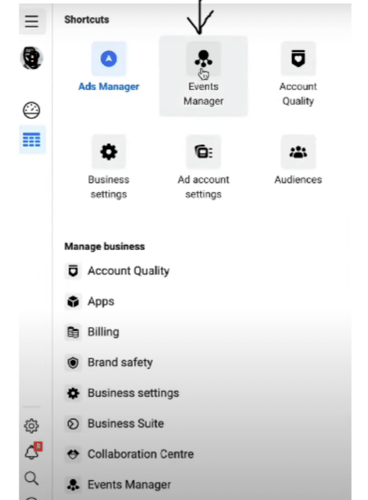
Click All Tools.
-
Scroll down and click Events Manager.
-
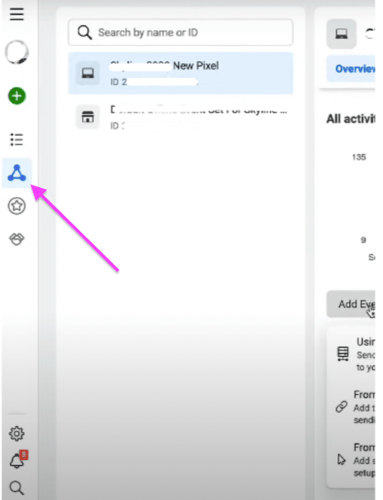
On the left, click Data Sources.
-
Copy the pixel code.