Return the amount a customer paid online to your store. Owners and managers can do this.
Before you start
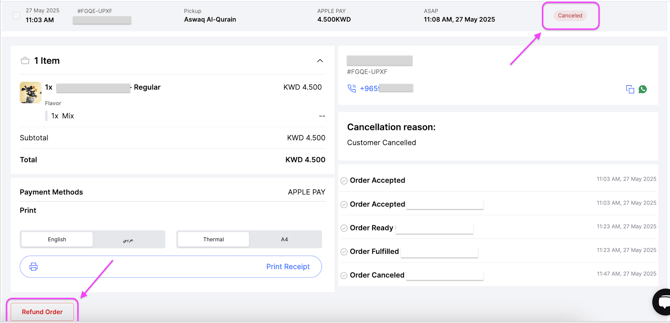
- The order must be cancelled. The Refund Order button only appears on a cancelled order.
- Partial refunds cannot be done from the Zyda dashboard.
Steps
-
Go to Orders.
-
Open the order you want to refund.
-
Scroll down and click Refund Order.
-
Choose one of the refund options:
- Wallet Refund — the amount goes to the customer's Orderfast Wallet instantly. The customer can use it for future orders on your website.
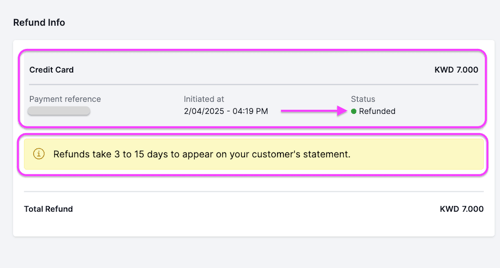
- Credit Card Refund — the amount goes back to the card the customer paid with. It can take 3 to 15 working days to appear, depending on the bank.
-
Click Proceed Refund, then Refund.
Wallet refunds
The wallet balance is virtual. The customer can only use it on your website.
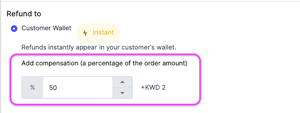
When you choose a wallet refund, you can add a compensation percentage as a bonus.
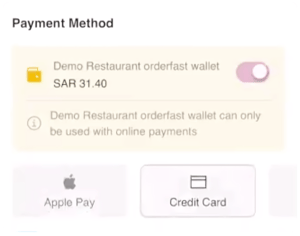
For example, on a 10 KWD order with 50% compensation:
- 10 KWD refund
- 5 KWD bonus
- 15 KWD added to the wallet in total
Orders paid by card and wallet together
- The wallet amount goes back to the customer's wallet.
- The credit card amount goes back to the original card.
If the order was paid fully with the wallet, the refund goes only to the wallet.
Partial refunds
You cannot process a partial refund from the Zyda dashboard. Process it from your payment gateway dashboard. If your store is integrated with MyFatoorah, contact Zyda support.
Refund status
After you refund, open the same order and scroll to Refund Info. The status is one of these:
-
Pending — the refund is processing.
-
Refunded — the customer received the amount.
-
Failed — the refund did not go through.
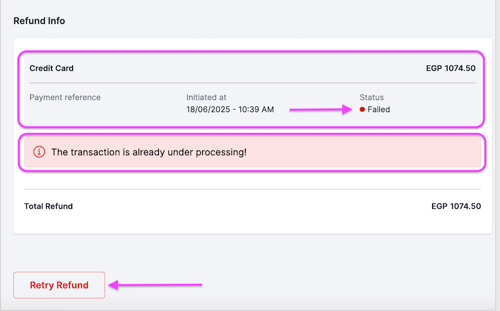
If the refund fails, the reason is shown. Click Retry Refund to try again.