Publish an item so it appears on your website, or unpublish it to hide it from customers without deleting it. Owners and managers can do this.
If your store is integrated with Foodics, make menu changes in Foodics instead. Item names, prices, option groups and modifiers edited in Zyda will not reach your store.
Steps to publish an item
-
Go to Menu and select Items.
-
Select the item you want to publish.
-
In the item's Info section, scroll down to Selected Branches.
-
Click Select All, or choose the branches where the item should appear.
-
Click Save.
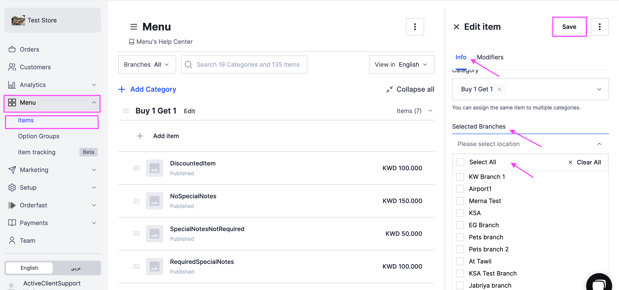
The item is now visible on your website.
Steps to unpublish an item
From Selected Branches
-
Go to Menu and select Items.
-
Select the item you want to hide.
-
In the Info section, scroll to Selected Branches.
-
Click Clear All, or choose the branches where the item should disappear.
-
Click Save.
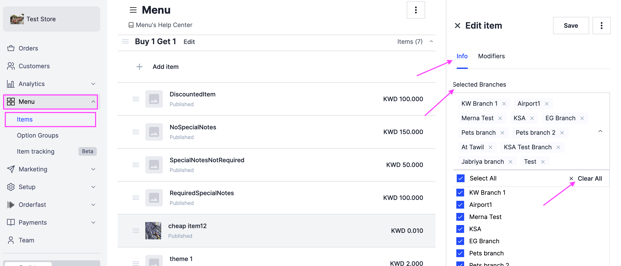
From the item options
-
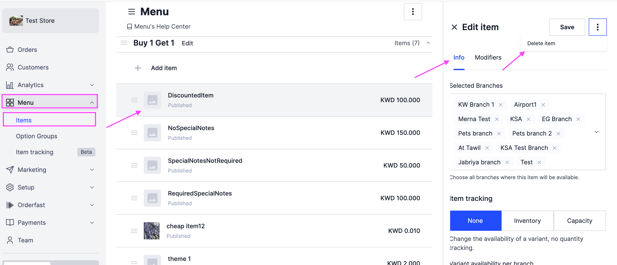
Go to Menu and select Items.
-
Select the item you want to unpublish.
-
Click the options icon on the right.
-
Choose Delete Item, then select Unpublish.
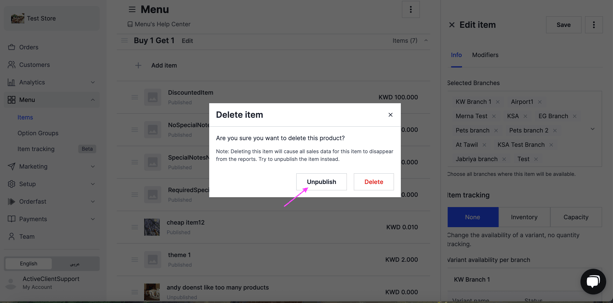
Unpublishing hides the item from customers and keeps it in your menu for later.