Import your stock quantities into the dashboard from an Excel sheet. Owners and managers can do this.
If your store is integrated with Foodics, make menu changes in Foodics instead. Item names, prices, option groups and modifiers edited in Zyda will not reach your store.
Steps
-
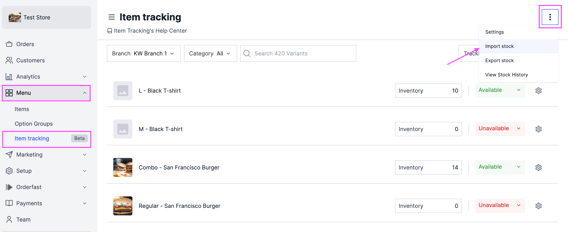
Go to Menu and select Item tracking.
-
Click the options icon at the top right and select Import Stock.
-
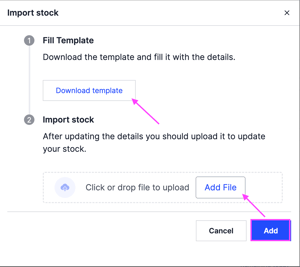
Click Download Template and fill it in carefully, matching the format it asks for.
-
Click Add File, select the Excel file on your device, then click Add to upload it.