Export an Excel report of your orders on Zyda. You can apply filters and include product details. Owners, managers and operators can do this.
Steps
-
Go to the Orders tab.
-
Choose Current Orders or Past Orders.

-
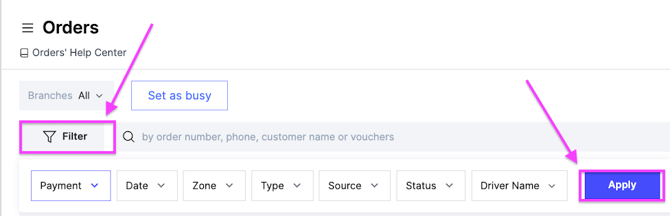
Apply the filters you need, then click Apply.
-
Click Export at the top right of the dashboard.

-
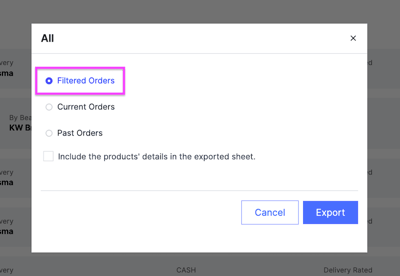
Confirm Filtered Orders in the popup message.
-
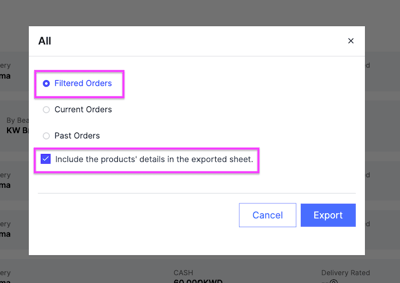
Tick Include the products' details in the exported sheet.
-
Click Export. The report is sent to your registered email.
If you apply no filters, the report includes all orders.
The filters you can use
- Payment — cash, KNET, credit card, Apple Pay.
- Date — a date range you select.
- Zone — filter by area or zone.
- Type — delivery or pickup.
- Source — Dyma, website, Zyda app, manual order.
- Status — pending, accepted, ready, dispatched, completed, cancelled.
- Driver Name — a specific driver.