Remove the picture from an item on your menu. Owners and managers can do this.
If your store is integrated with Foodics, make menu changes in Foodics instead. Item names, prices, option groups and modifiers edited in Zyda will not reach your store.
Steps
-
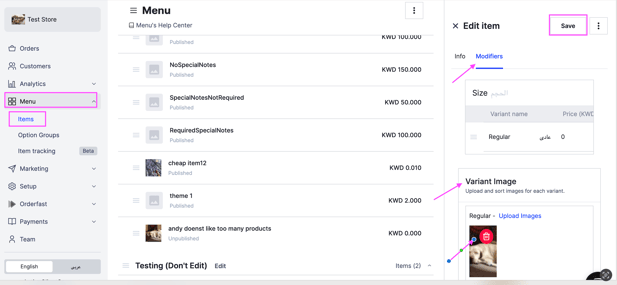
Go to Menu and select Items.
-
Select the item you want to edit.
-
In the Modifiers section, open Variant Image.
-
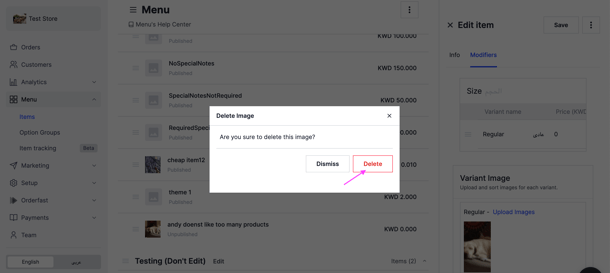
Click the delete icon on the image, then click Delete to confirm.
-
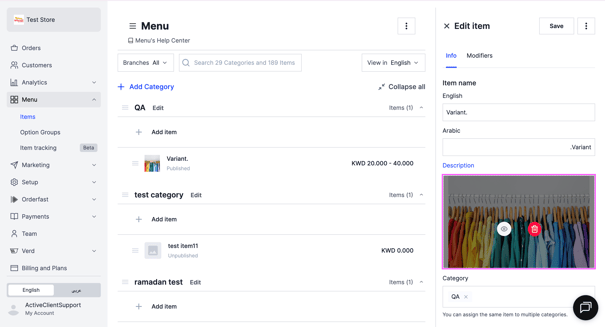
Remove the image in the Info section too, if there is one there.
-
Click Save.