Show an item's choices clearly as a group, so customers can pick what they want. Owners and managers can do this.
Steps
-
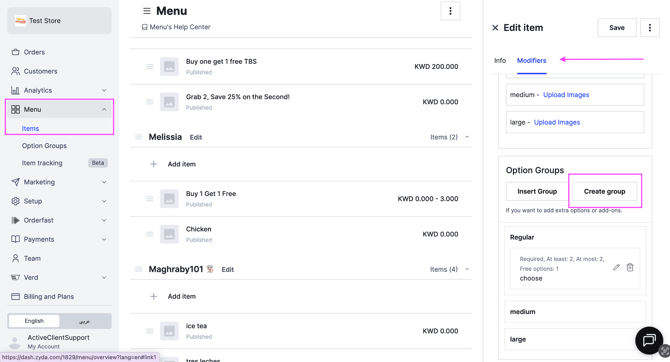
Go to Menu, then Items.
-
Select the item you want to create an option group for.
-
In the Modifiers section, scroll down to Option Groups.
-
Click Create Group.
-
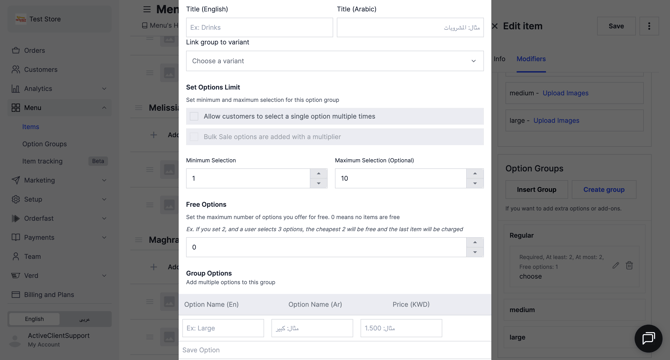
Fill in the group details, described below.
-
Click Save.
You have to click Save option to add a new empty option. Then click Save.
The group details
Group Name
Enter it in English and in Arabic.
Link Group to Variant
Choose which item variants the option group appears for. You can apply it to one variant, to several, or to all of them.
Set Options Limit
Turn on Allow customers to select a single option multiple times if you want customers to pick the same option more than once.
Bulk sale options are added with a multiplier. This is useful when you sell packages, or items with a fixed number of pieces. For example, a box holds 50 pieces. You can let customers choose the quantity per option, such as 5 pieces of the same option several times, until they reach the total of 50 pieces.
Set a number of free options and the system makes the cheapest option free. This works well for offers.
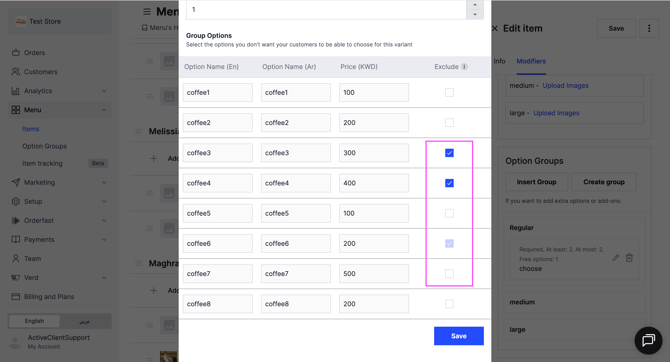
Exclude Option
Mark an option to disappear for certain variants or items.
Minimum and Maximum Selection
- Minimum = 0 — the selection is optional.
- Minimum 1 or more — the selection is required.
- Maximum — optional. It limits how many options a customer can choose.
- Maximum = 0 — unlimited selection.
Group Options
Enter the option names in English and in Arabic, and add their prices if you need to. Set the price to 0 for a free add-on.