Cancel an order and give the reason. Owners, managers and operators can do this.
Before you start
- Cancelling changes the order status to Canceled and moves the order to Past Orders.
- Once an order is cancelled, the only action left on it is a refund.
Steps
-
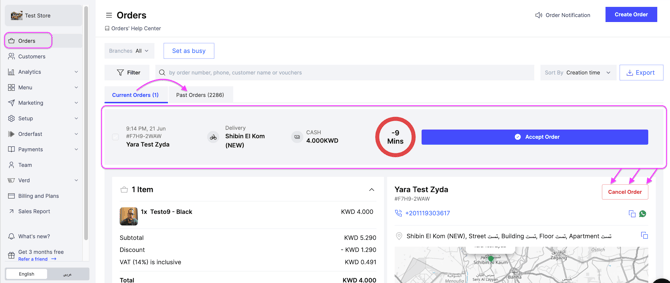
Go to Orders.
-
Open the order you want to cancel.
-
Click Cancel Order.
-
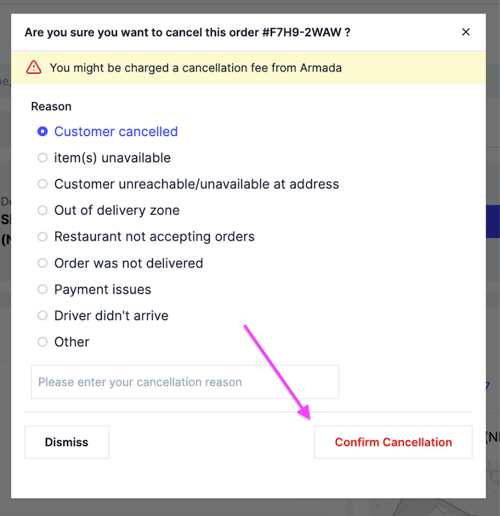
Select the cancellation reason.
-
Click Confirm Cancellation.
Cancelling does not refund the customer. To refund, read Refund an order.