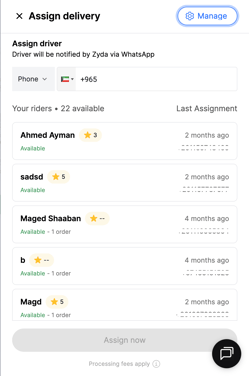
Send an accepted order to a courier company or to one of your own drivers. Owners, managers and operators can do this.
Assign to a courier company
Verd Network lets you assign orders to courier companies even without a direct integration, such as Wiyak, Armada, Verdi and Do. See the Verd Network article.
-
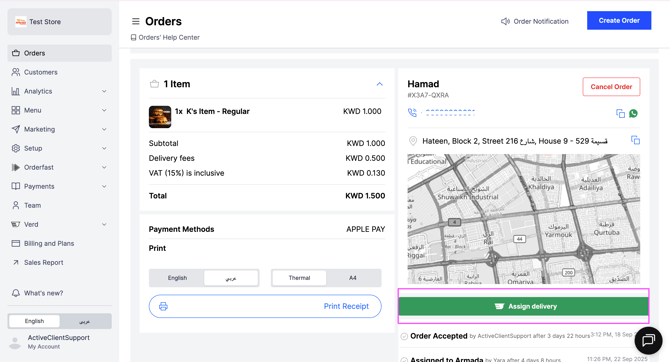
Go to Orders and accept the order.
-
Click Assign Delivery.
-
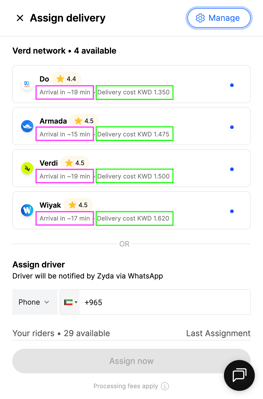
Choose how you want to pick the courier:
- Cheapest — the courier with the lowest delivery cost.
- Fastest — the courier with the quickest pickup time.
-
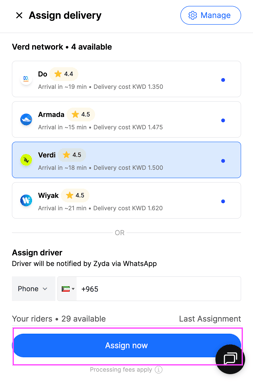
Select the courier, then click Assign now.
Reassign an order
If you reassign an order to another courier, a warning tells you a delivery fee might be deducted.
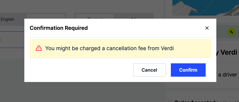
The delivery fee is only deducted if the driver has already arrived to pick up the order, and you then cancel or reassign it. If the order is still Searching for a Driver or En Route to Pickup, no delivery fee is deducted.
Driver details
Once a driver is assigned, you can see the driver's details, including their mobile number. You can also track the rider in real time from the order details page.
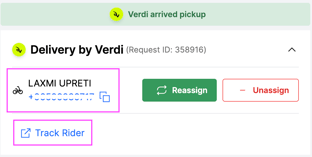
Delivery status flow
After you assign the order, the system waits for a driver to be assigned. The order status then updates on its own:
- Searching for a Driver — the courier company is looking for an available driver.
- En Route to Pickup — a driver is assigned and is heading to the pickup location.
- Arrived at Pickup — the driver has arrived to collect the order.
- Out for Delivery — the order is on the way to the customer.
- Arrived at Destination — the driver has arrived at the customer's location.
If you see "Payment type is not supported"
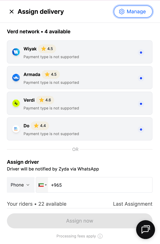
This usually means the order was placed as cash while your store is integrated with Tap. Verd Network supports cash orders only when the store is integrated with MyFatoorah. Cash orders are not supported with Tap.
You can still assign the order to your own drivers with Verd Dispatch.
Assign to your own drivers
-
Go to Orders and accept the order.
-
Click Assign Delivery.
-
Select an available driver from the list.