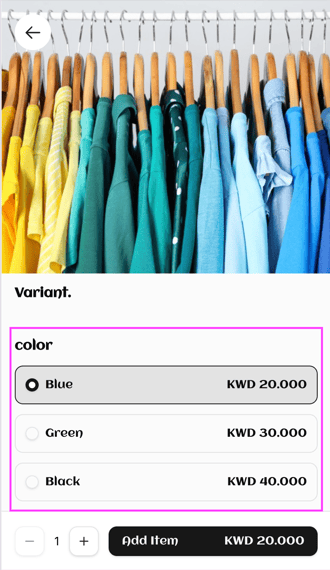
Offer the same item in different sizes, colours or shapes, each with its own price. Owners and managers can do this.
If your store is integrated with Foodics, make menu changes in Foodics instead. Item names, prices, option groups and modifiers edited in Zyda will not reach your store.
Steps
-
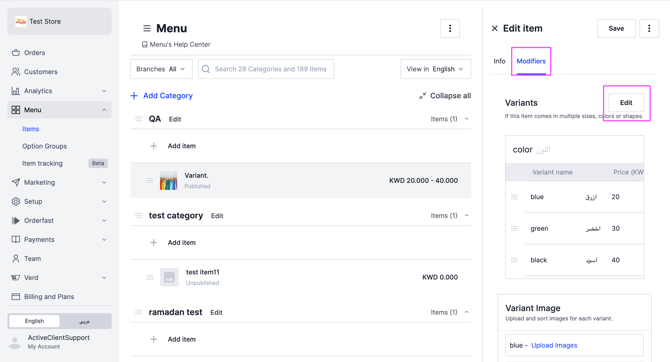
Go to Menu and select Items.
-
Select the item you want to add variants to.
-
In the Modifiers section, click Edit.
-
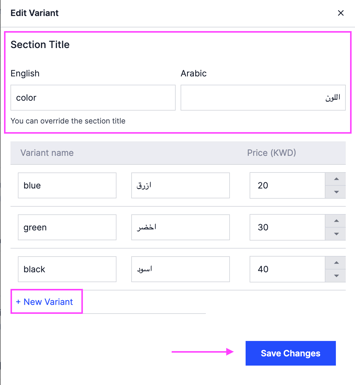
Set the variant name in English and in Arabic. Name it after the kind of variation, such as sizes, colors or shapes.
-
Click New Variant.
-
Set the price for the variant.
-
Click Save Changes so the variant appears on your website.