Create a category to group the items on your menu. Owners and managers can do this.
If your store is integrated with Foodics, make menu changes in Foodics instead. Item names, prices, option groups and modifiers edited in Zyda will not reach your store.
Steps
-
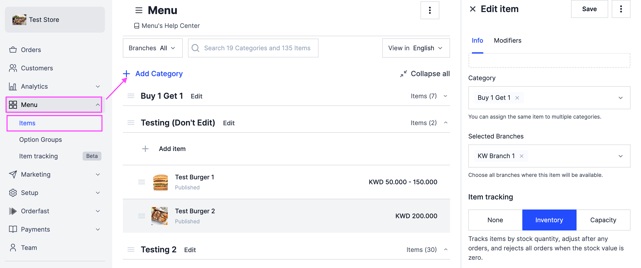
Go to Menu and select Items.
-
At the top left, click Add Category.
-
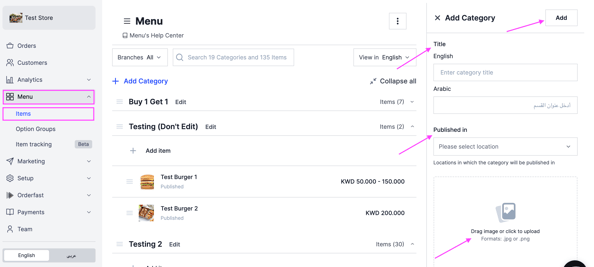
On the right of the dashboard, fill in:
- Title — the category name in English and in Arabic.
- Published in — the branches where the category appears.
- Image — drag an image in, or click to upload one from your device.
-
Click Add.