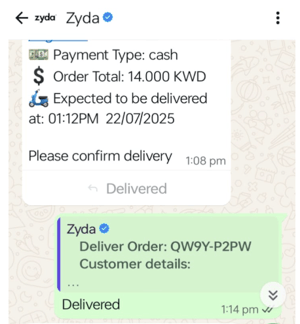
After you assign an order to a driver, the driver gets the order details on WhatsApp. You choose which WhatsApp flow your store uses.
To assign orders, read Assign orders to couriers and drivers.
Steps
-
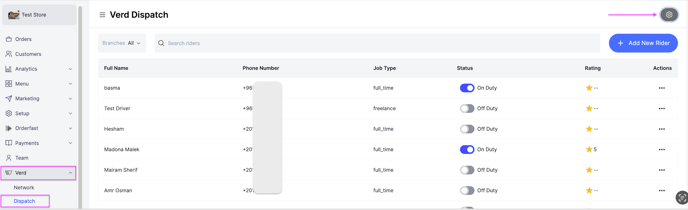
Go to Verd.
-
Click the Settings icon at the top right.
-
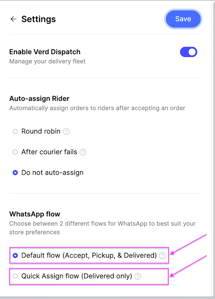
Scroll down, select the flow you want, and click Save.
- Default flow — Accept, then Pickup, then Delivered.
- Quick Assign flow — Delivered only.
Once you assign an order to a driver, the driver manages the order status. For example, when the driver marks the order as Delivered on WhatsApp, the order status on the dashboard changes to Completed.
What the driver receives
-
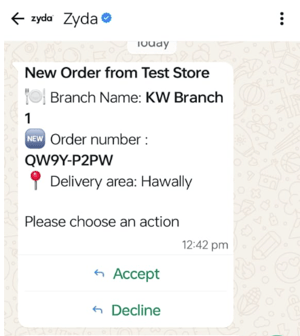
A message on the registered WhatsApp number with an Accept or Decline option. It contains the store name, the branch name and the order number.
-
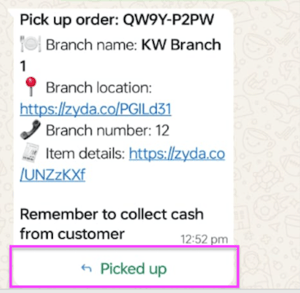
After the driver clicks Accept, a message with the branch to pick the order up from, and a Picked Up button. It contains the order number, the branch name, the branch location, the branch number and the item details.
-
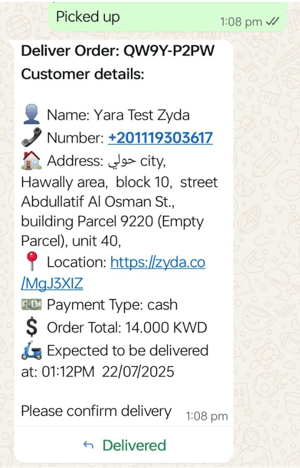
After the driver clicks Picked Up, a message with the delivery and customer details. It contains the customer name, the customer number, the customer address, the customer location, the payment method and the expected time of delivery.
-
Once the order is delivered, the driver clicks Delivered. The dashboard shows the order as Completed.