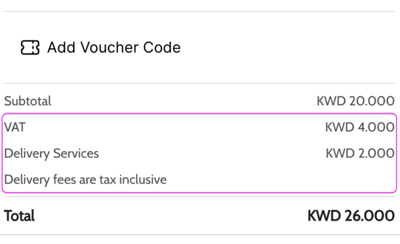
State on your receipts and on your storefront whether your delivery fees include tax. Owners and managers can do this.
Before you start
- Your store must be set as a licensed business.
- This does not work for stores using a courier integration or Verd Network.
- This setting does not add a percentage to your delivery fees. It only states whether the fees already include tax. If you choose tax inclusive, update the fees yourself in the Delivery tab.
Steps
-
Go to Setup.
-
Open Business Information.
-
Scroll down and turn on Licensed Business.
-
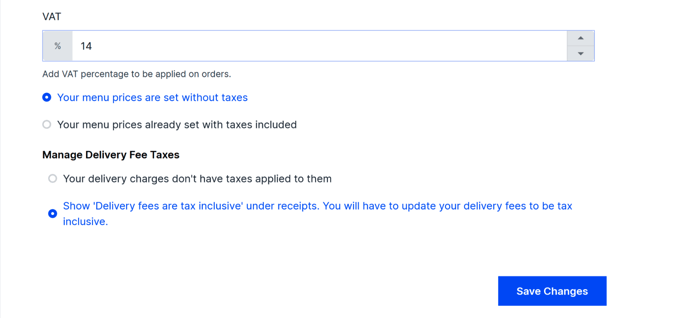
Under Manage Delivery Fee Taxes, choose one option:
- Your delivery charges don't have taxes applied to them — the receipt shows the delivery fee on its own.
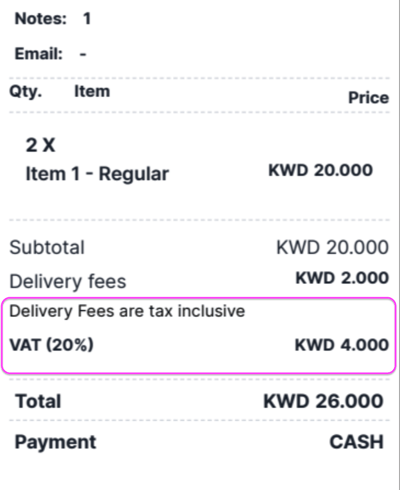
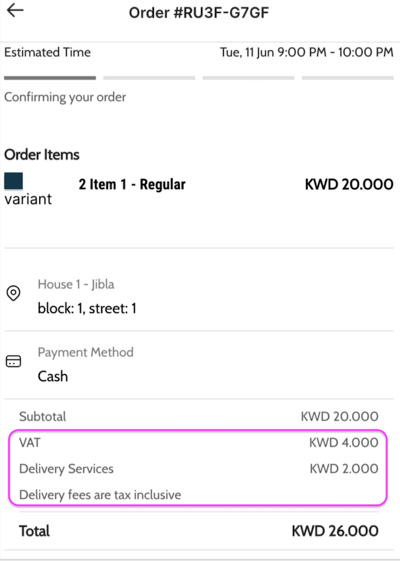
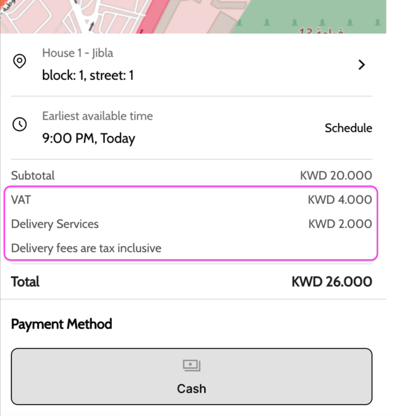
- Show "Delivery fees are tax inclusive" under receipts — the receipt carries a footer saying the fee includes tax.
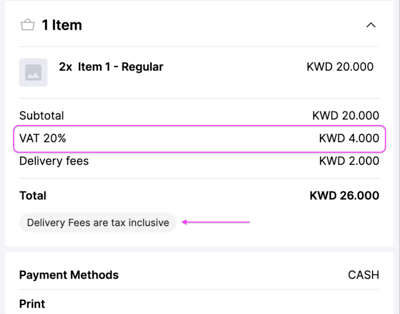
Where the VAT line appears
On the dashboard:
-
Order card
-
A4 print
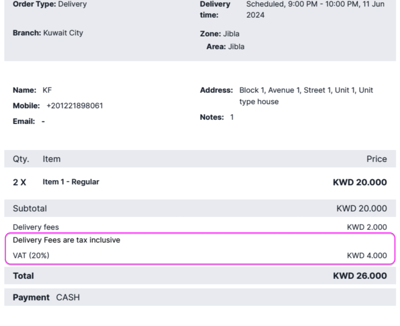
-
Thermal print
On your storefront:
-
Shopping cart
-
Checkout
-
Order summary